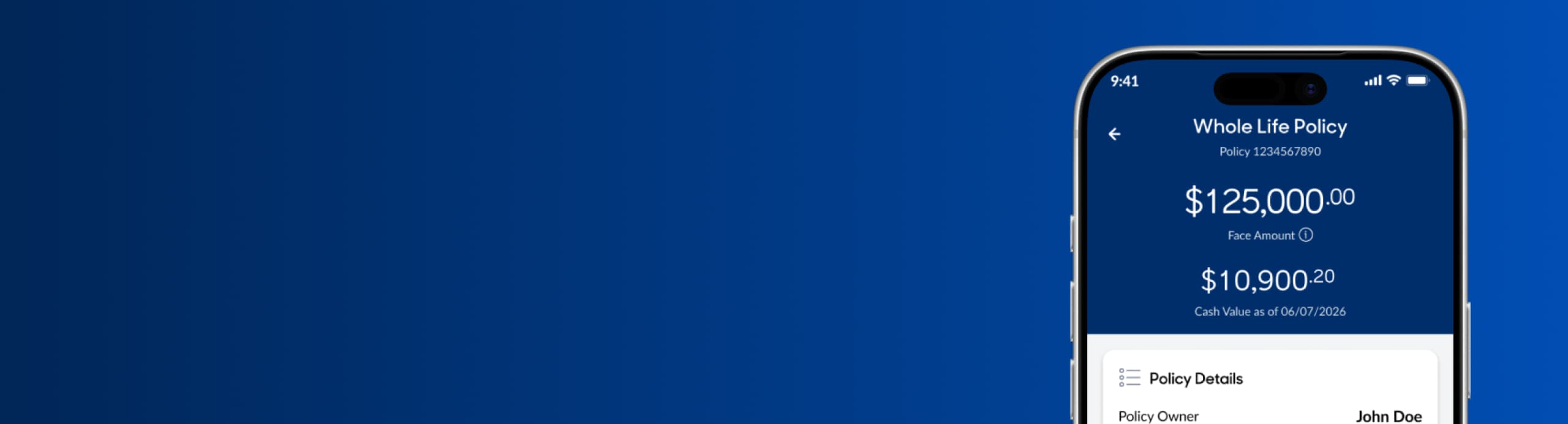
Stay in control, wherever you are.
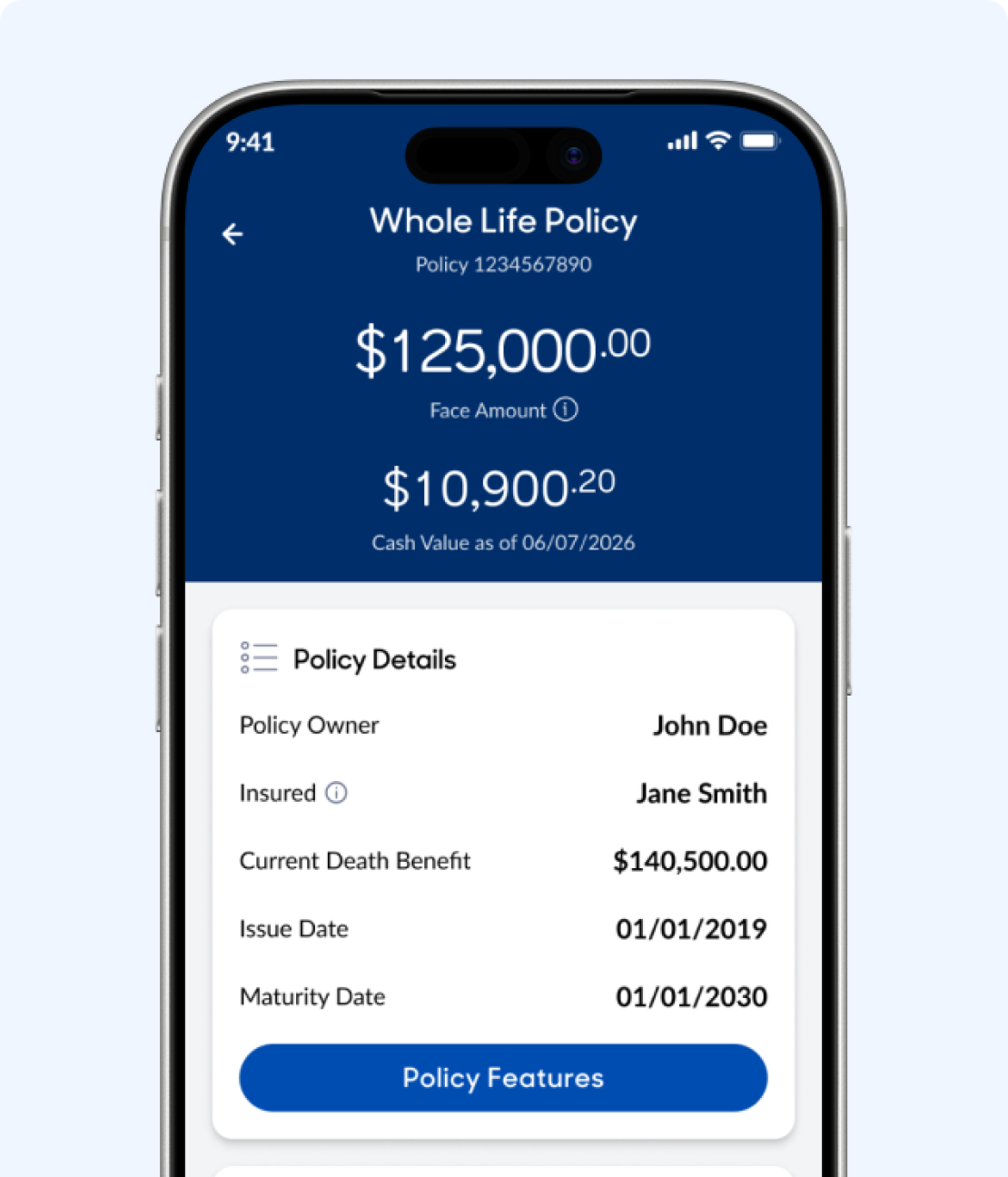
Manage accounts
View coverage details, check balances, update beneficiaries and track policy performance—all in one place.
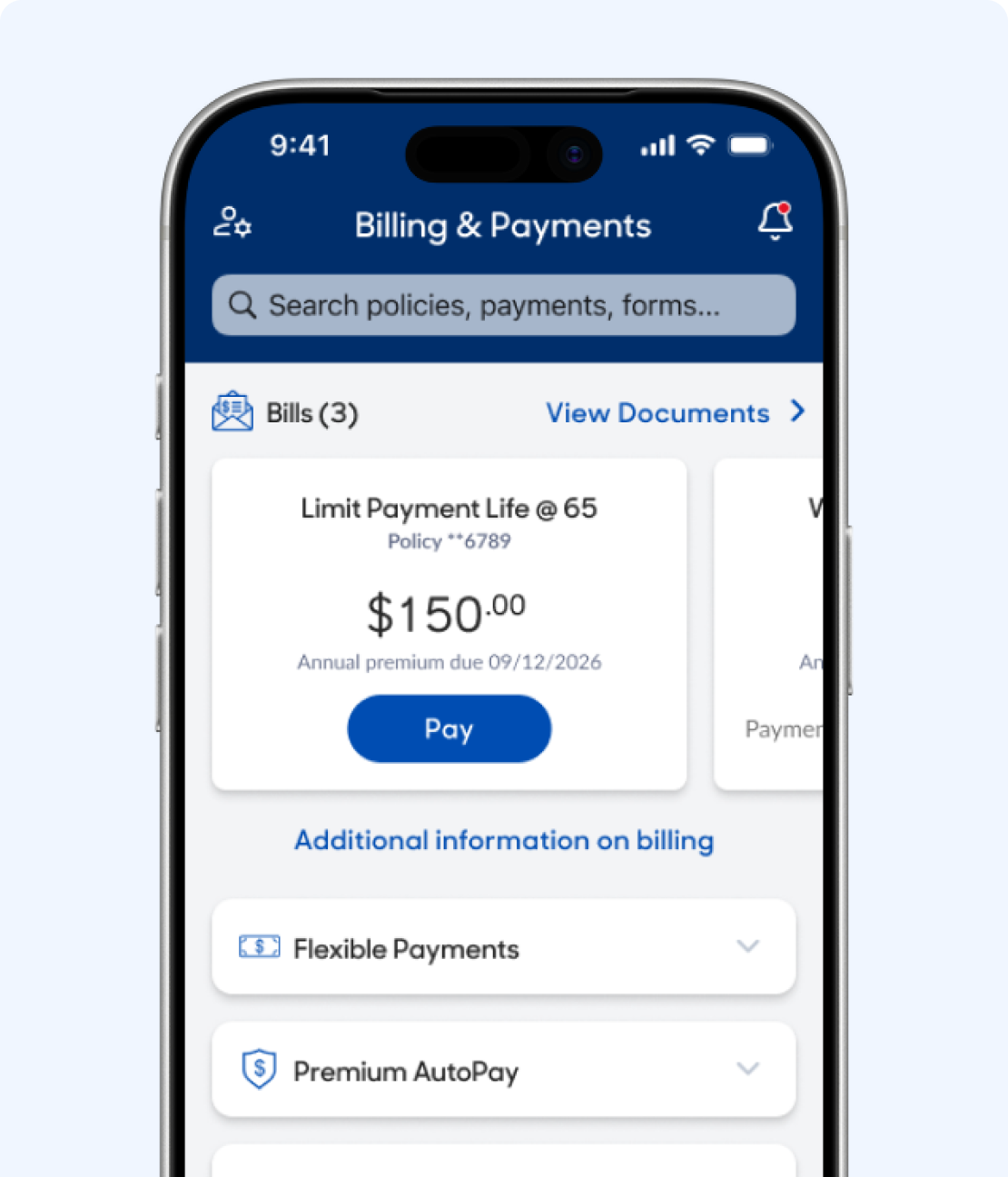
Make payments
Pay premiums on the go, set up autopay so you never miss a due date, and review your full payment history.
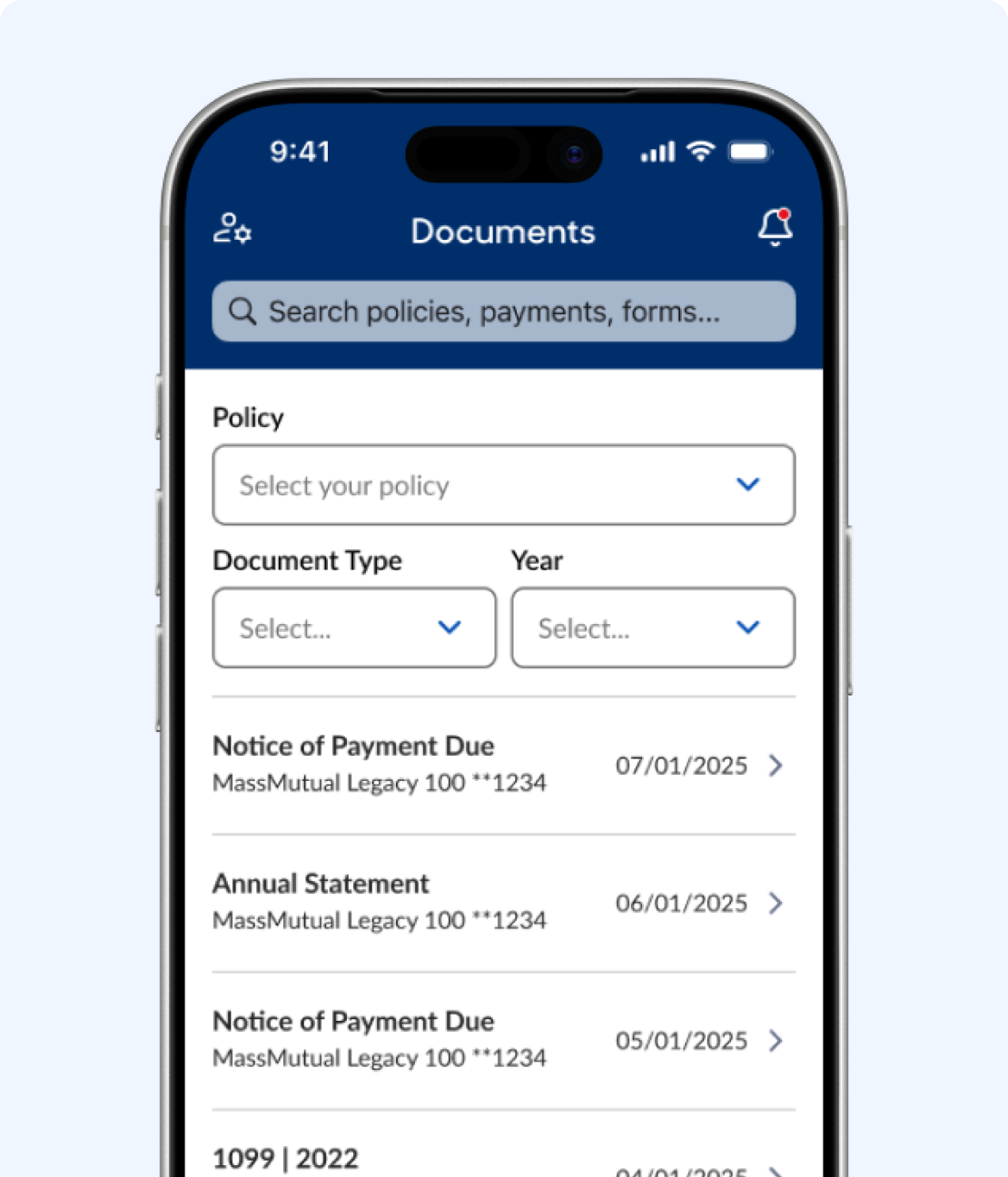
View statements
Access policy statements, tax documents, and annual reports whenever you need them.

Download the app today
Scan the QR code or use the App Store links below to download the MassMutual mobile app.


Need to create an account?
Create an account now or tap “Register” on the app’s login screen. You’ll use the same login credentials for both.

Keeping data security top of mind
We use the latest cybersecurity technologies including biometric login with Touch ID and Face ID to ensure your information is secure.

Trusted by MassMutual policyowners
Top-rated by the people who matter most: our policyowners. Join thousands who trust the app.
FAQs
Answers to your most common questions.
Download the free MassMutual app from the App Store or Play Store, then log in using the same credentials you use on MassMutual.com. If you don't already have an account, you can create one right in the app.
Once you’re logged into the app, tap the Profile icon at the top of the screen, then tap “Paperless Preferences.” Select the bills, variable documents, and/or policies you’d like to switch to paperless.
Yes! To change your address on the mobile app, tap the Profile icon at the top of the screen after logging in, then tap “Change Addresses” under Account Settings. Tap “Edit” next to the address you’d like to change, enter the new address, and tap “Done” when you’re finished.
To make a payment, log in and tap "Payments" on the bottom menu, then select your policy and tap "Pay." Follow the prompts to complete your payment. If you're not a policy owner, tap "Guest Pay - One Time Payment" on the home screen instead.
Yes! Tap "Payments" on the bottom menu, select your policy, then tap "AutoPay" and choose the type of payment you'd like to set up (Premium, Loan, or Loan Interest). Follow the prompts to finish. If you're not a policy owner, tap "Guest Pay - Recurring Monthly Payment" on the home screen instead and follow the prompts. Please note: For policies billed annually, semi-annually, or quarterly, the policy owner must log in to set up recurring payments.